Artifact#
The challenge provides a zip file. After extracting it, we obtain a registry hive file.
To analyze the hive we use RegistryExplorer.exe from Eric Zimmerman’s ZimmermanTools suite.
Step 1 — Open the hive
The challenge description refers to impersonation tools that were executed on the system. If an attacker needs to execute a tool, they typically do so through cmd.exe or powershell.exe. We therefore need to locate evidence of PowerShell execution within the registry.
Use Ctrl+F inside RegistryExplorer and search for powershell.exe.
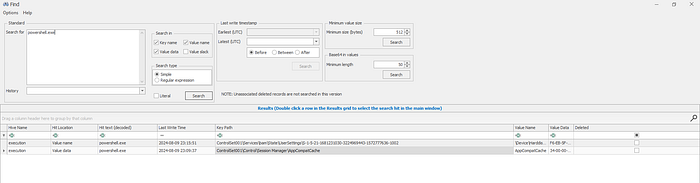
The AppCompatCache (Shimcache) key confirms that powershell.exe was executed on this system. Continuing to browse the suspicious executables within the hive, we spot:
DeadPotato-NET4.exe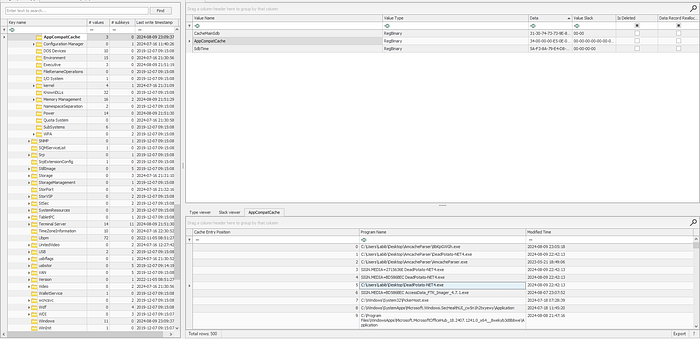
A quick search for DeadPotato confirms it is a privilege escalation / impersonation tool. The flag for this challenge is:
BHFlagY{DeadPotato-NET4.exe_09/08/2024_22:42:13}NotFS#
The challenge description hints that the provided file may contain or represent a file system that needs to be analyzed, reconstructed, or repaired to extract relevant information.
After downloading the zip, we obtain a disk image file.

The image uses a DOS-style Master Boot Record (MBR) partitioning scheme.
Step 1 — Discovery#
Use mmls (from The Sleuth Kit) to display the partition layout:
mmls Chall.img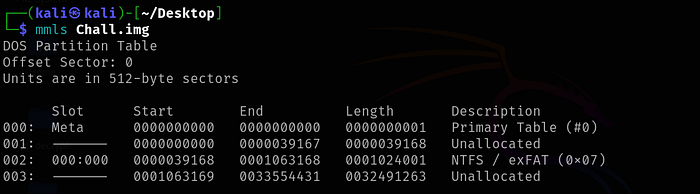
Key findings from the output:
- Allocated Partition (Slot 002): Formatted as NTFS/exFAT, covering sectors 39168 to 1063168.
- This partition is in use and stores files.
Step 2 — Mount#
First attempt: extract the allocated partition with dd and mount it directly.
dd if=Chall.img of=ch_1 bs=512 skip=0 count=1024001
sudo mkdir -p /mnt/disk
sudo mount ch_1 /mnt/disk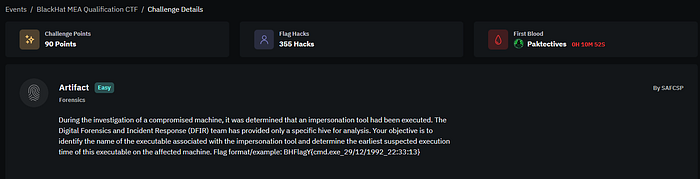
This fails. The issue is related to loop devices — the mount requires the full image with a partition offset, not just the extracted partition data.
Background: In Unix-like operating systems, a loop device (also referred to as vnd or lofi) is a pseudo-device that makes a regular file accessible as a block device. Before use, a loop device must be associated with an existing file in the filesystem.
The correct approach is to mount the full image using an offset to point at the start of the NTFS partition.
Step 3 — Mount with Offset#
3a. Set up the loop device:
sudo losetup /dev/loop1 /home/kali/Desktop/Chall.img
This associates Chall.img with /dev/loop1 so it can be treated as a block device.
3b. Verify current loop device associations:
losetup -a3c. Mount with the partition offset:
sudo mount -o loop,offset=$((0x100000)) /dev/loop1 /mnt/diskThe offset=$((0x100000)) skips over the preliminary partition table data and positions the mount pointer at the start of the actual NTFS filesystem.
3d. List the mounted filesystem:
ls /mnt/disk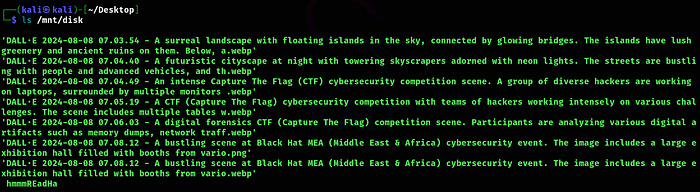
All files share the .webp extension — except one, which has a .png extension.
Step 4 — Analyze the PNG File#
Copy the suspicious PNG to the desktop for analysis:
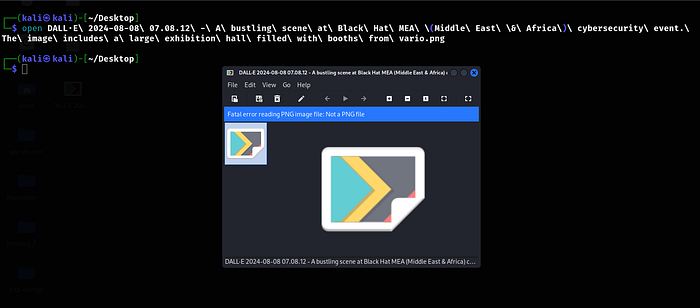
mv /mnt/disk/DALL·E\ 2024-08-08\ 07.08.12\ -\ A\ bustling\ scene\ at\ Black\ Hat\ MEA\ \(Middle\ East\ \&\ Africa\)\ cybersecurity\ event.\ The\ image\ includes\ a\ large\ exhibition\ hall\ filled\ with\ booths\ from\ vario.png /home/kali/Desktop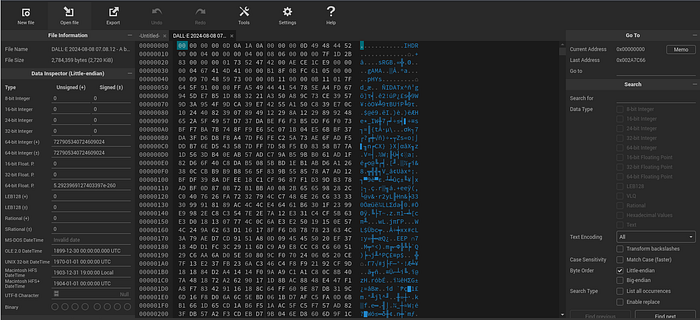
The file does not open. Inspection of the file header reveals the problem.
Step 5 — Fix the Magic Bytes#
Open the file in hexed.it and examine the header:

The PNG magic bytes are missing. A valid PNG file must begin with:
89 50 4E 47 0D 0A 1A 0APrepend these magic bytes using hexed.it, then export the corrected file.
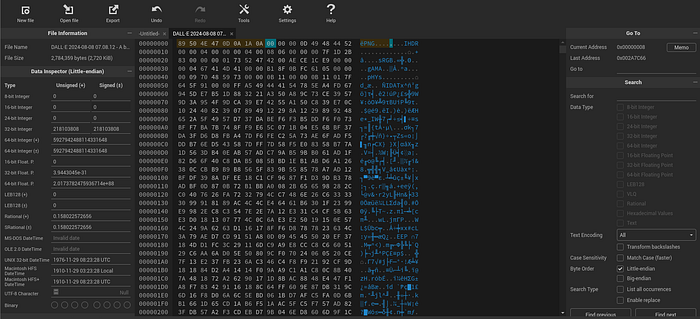
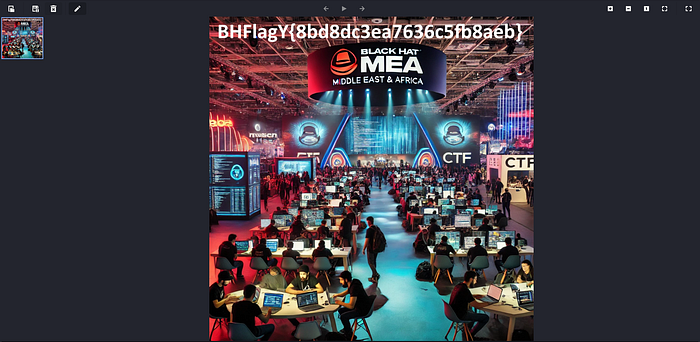
Open the repaired file to reveal the flag embedded in the image.